
 IoT Projects
 ML Projects


IoT Weather Station ESP32: Smart Monitoring Project Guide (2026)

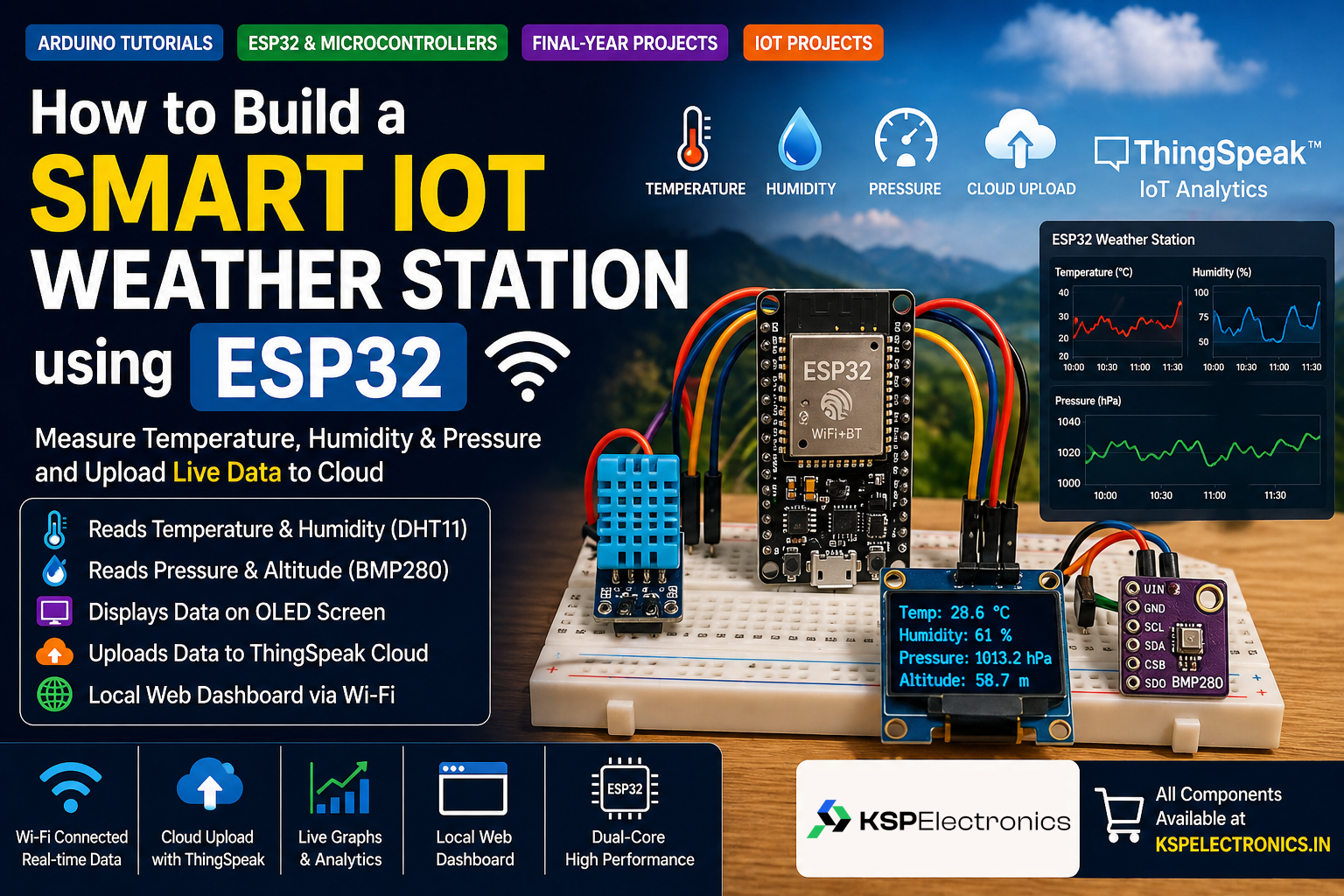
Build this IoT weather station ESP32 project to monitor temperature, humidity and pressure in real time. Building a Smart IoT Weather Station using ESP32 is one of the most impressive and practical mini-projects for B.Tech and Diploma engineering students. Unlike a basic LCD temperature display, this project uses the dual-core ESP32 microcontroller to read real-time environmental data from multiple sensors and push it live to a cloud dashboard over Wi-Fi — exactly the kind of project that scores high in viva examinations and impresses recruiters.
In this complete guide, you will build a weather station that measures temperature, humidity, and atmospheric pressure, displays data on an OLED screen, and streams it to ThingSpeak — a free IoT analytics platform that lets you graph your sensor readings from anywhere in the world.
What Will Your IoT Weather Station ESP32 Build Include?
By the end of this project, your ESP32 Weather Station will:
- Read temperature and humidity from a DHT11 or DHT22 sensor every 15 seconds.
- Read atmospheric pressure and altitude from a BMP280 sensor over I2C.
- Display all readings live on a 0.96″ OLED display connected to the ESP32.
- Connect to your Wi-Fi network and upload data to a ThingSpeak cloud channel automatically.
- Serve a simple local web dashboard so any phone on the same Wi-Fi can see the readings.
Components Required — Buy the Complete Kit from KSP Electronics
You do not need to hunt across multiple stores. Below is every component you need, with direct links to buy them from KSP Electronics with fast pan-India shipping:
| Component | Purpose | Buy at KSP Electronics |
|---|---|---|
| ESP32 Microcontroller (x1) | Main brain — Wi-Fi, Bluetooth, dual-core CPU | ESP32-WROOM-32UE DevKit — ₹520 |
| DHT11 Temperature & Humidity Sensor (x1) | Measures ambient temp and humidity | Available in-store |
| BMP280 Pressure Sensor Module (x1) | Measures barometric pressure & altitude | Available in-store |
| 0.96″ OLED I2C Display (x1) | Shows live readings locally | Available in-store |
| Breadboard (x1) | Prototyping platform, no soldering needed | MB102 830-pt Breadboard — ₹85 |
| Jumper Wires M-to-F (x20) | Connecting sensors to ESP32 | Available in-store |
| Micro USB Data Cable (x1) | Programming and power supply | Available in-store |
Prefer the compact form factor? The ESP32 Live D1 Mini Kit (₹496) fits on a half-sized breadboard and is perfect if you want to build this project inside a small enclosure.
Step 1: Wiring the Hardware
All three peripherals (DHT11, BMP280, OLED) connect to the ESP32 using only 5 pins. Here is the complete wiring table:
DHT11 Sensor Wiring
- VCC → 3.3V on ESP32
- GND → GND on ESP32
- DATA → GPIO 4 on ESP32
BMP280 Sensor Wiring (I2C)
- VCC → 3.3V on ESP32
- GND → GND on ESP32
- SCL → GPIO 22 (default I2C Clock on ESP32)
- SDA → GPIO 21 (default I2C Data on ESP32)
0.96″ OLED Display Wiring (I2C)
The OLED display also uses I2C, so it shares the same GPIO 21 (SDA) and GPIO 22 (SCL) lines as the BMP280. I2C supports multiple devices on the same bus — no extra pins needed.
- VCC → 3.3V on ESP32
- GND → GND on ESP32
- SCL → GPIO 22
- SDA → GPIO 21
Step 2: Setting Up Arduino IDE for ESP32
If you have not programmed an ESP32 before, you need to add the ESP32 Board Manager to Arduino IDE first:
- Open Arduino IDE → File → Preferences.
- In Additional boards manager URLs, paste:
https://raw.githubusercontent.com/espressif/arduino-esp32/gh-pages/package_esp32_index.json - Go to Tools → Board → Boards Manager, search for esp32 by Espressif Systems, and click Install.
- After installation, go to Tools → Board → ESP32 Arduino → ESP32 Dev Module.
Now install the required libraries via Sketch → Include Library → Manage Libraries:
DHT sensor libraryby AdafruitAdafruit Unified Sensorby Adafruit (dependency)Adafruit BMP280 Libraryby AdafruitAdafruit SSD1306by Adafruit (for the OLED display)Adafruit GFX Libraryby Adafruit (dependency for OLED)
Step 3: The Complete Arduino Code
Copy and paste the complete sketch below into Arduino IDE. Replace YOUR_WIFI_SSID, YOUR_WIFI_PASSWORD, and YOUR_THINGSPEAK_API_KEY with your actual values before uploading.
#include <WiFi.h>
#include <HTTPClient.h>
#include <DHT.h>
#include <Adafruit_BMP280.h>
#include <Adafruit_SSD1306.h>

// --- Configuration ---
const char* ssid     = "YOUR_WIFI_SSID";
const char* password = "YOUR_WIFI_PASSWORD";
const char* apiKey   = "YOUR_THINGSPEAK_API_KEY";

// --- Pin Definitions ---
#define DHTPIN 4
#define DHTTYPE DHT11

// --- Objects ---
DHT dht(DHTPIN, DHTTYPE);
Adafruit_BMP280 bmp;
Adafruit_SSD1306 display(128, 64, &Wire, -1);

void setup() {
  Serial.begin(115200);
  dht.begin();
  bmp.begin(0x76);  // BMP280 I2C address
  display.begin(SSD1306_SWITCHCAPVCC, 0x3C);
  display.clearDisplay();

  WiFi.begin(ssid, password);
  Serial.print("Connecting to WiFi");
  while (WiFi.status() != WL_CONNECTED) {
    delay(500);
    Serial.print(".");
  }
  Serial.println(" Connected!");
  Serial.println(WiFi.localIP());
}

void loop() {
  float temperature = dht.readTemperature();
  float humidity    = dht.readHumidity();
  float pressure    = bmp.readPressure() / 100.0F;  // hPa
  float altitude    = bmp.readAltitude(1013.25);     // sea level pressure

  // Display on OLED
  display.clearDisplay();
  display.setTextSize(1);
  display.setTextColor(SSD1306_WHITE);
  display.setCursor(0, 0);
  display.print("Temp: ");    display.print(temperature); display.println(" C");
  display.print("Humidity: "); display.print(humidity);    display.println(" %");
  display.print("Pressure: "); display.print(pressure);    display.println(" hPa");
  display.print("Altitude: "); display.print(altitude);    display.println(" m");
  display.display();

  // Upload to ThingSpeak
  if (WiFi.status() == WL_CONNECTED) {
    HTTPClient http;
    String url = "http://api.thingspeak.com/update?api_key=" + String(apiKey)
               + "&field1=" + String(temperature)
               + "&field2=" + String(humidity)
               + "&field3=" + String(pressure);
    http.begin(url);
    int httpCode = http.GET();
    Serial.println("ThingSpeak Response: " + String(httpCode));
    http.end();
  }

  delay(15000);  // Upload every 15 seconds (ThingSpeak free-tier limit)
}
Step 4: Setting Up Your Free ThingSpeak Cloud Dashboard
- Go to thingspeak.com and create a free account using your email.
- Click New Channel. Give it a name like “ESP32 Weather Station”.
- Enable Field 1 (name it Temperature), Field 2 (Humidity), and Field 3 (Pressure). Click Save Channel.
- Go to the API Keys tab. Copy the Write API Key — this is the value you paste into
apiKeyin the code above. - Upload the code to your ESP32 and open the Serial Monitor (115200 baud). Within 30 seconds you should see “ThingSpeak Response: 1” — this means a data point was received successfully.
- Back on ThingSpeak, click Private View on your channel. You will see live graphs updating in real time!
Step 5: Viewing Data on Your Phone (Local Web Server)
The ESP32 can also serve a tiny web page to any device on your local Wi-Fi network — no internet required. After the code uploads, open the Serial Monitor and note the IP address printed (e.g., 192.168.1.105). Type that address into any phone browser on the same Wi-Fi and you will see a simple live dashboard of your sensor data. This is a great demo feature for viva presentations.
Troubleshooting Common IoT Weather Station ESP32 Issues
- DHT11 reads NaN: Check that the DATA pin is connected to GPIO 4 and that you are powering the sensor from 3.3V, not 5V.
- BMP280 not found: Try both I2C addresses —
bmp.begin(0x76)andbmp.begin(0x77). Some BMP280 modules ship with the alternate address. - OLED stays blank: Verify the OLED address is
0x3C. Some modules use0x3D. Use an I2C Scanner sketch to confirm addresses if unsure. - ThingSpeak always returns -1: The ESP32 may not have connected to Wi-Fi. Double-check your SSID and password (they are case-sensitive) and ensure your router supports 2.4 GHz (ESP32 does not support 5 GHz Wi-Fi).
- “Failed to connect to ESP32” during upload: Hold the BOOT button while clicking Upload. See our ESP32 driver fix guide if the COM port is missing entirely.
IoT Weather Station ESP32 Upgrades to Impress Your Examiner
- Add a rain sensor module and a GPIO-controlled buzzer to create a rainfall alert system.
- Use the Blynk IoT app instead of ThingSpeak for a slicker mobile dashboard with push notifications.
- Add a solar panel and LiPo battery to make the station fully standalone and outdoor-deployable.
- Use MQTT protocol to push data to a Node-RED dashboard on a Raspberry Pi — a step up that showcases advanced IoT architecture knowledge.
Buy All Components from KSP Electronics — Fast India Delivery
Instead of ordering from multiple vendors and waiting weeks for delivery, get everything you need in one order from KSP Electronics:
- 🔵 ESP32-WROOM-32UE DevKitC — ₹520
- 🔵 ESP32 Live D1 Mini Kit — ₹496 (compact option)
- 🟢 MB102 830-Point Breadboard — ₹85
- 🟢 Arduino Nano — ₹210 (great for a backup or alternate project)
Frequently Asked Questions
Can I use DHT22 instead of DHT11 for this project?
Yes. The DHT22 is a more accurate sensor with a wider measurement range (−40°C to +80°C vs DHT11’s 0–50°C). To use it, simply change #define DHTTYPE DHT11 to #define DHTTYPE DHT22 in the code. The wiring remains identical.
Is this project suitable for a B.Tech final year mini-project?
Absolutely. This project demonstrates real-time data acquisition, I2C protocol, Wi-Fi connectivity, cloud integration (ThingSpeak), and embedded C programming — covering multiple core syllabus topics in Electronics, Computer Science, and ECE streams. Add the local web server feature for extra credit.
Can ESP32 connect to 5 GHz Wi-Fi?
No. The ESP32 only supports 2.4 GHz Wi-Fi (802.11 b/g/n). If your router broadcasts on both 2.4 GHz and 5 GHz, ensure you are connecting to the 2.4 GHz band SSID. Most modern routers let you separate these into distinct SSIDs in the admin panel.
How much does it cost to build this IoT weather station?
The total cost is typically between ₹800 – ₹1,200 depending on whether you choose DHT11 or DHT22, and whether you already own jumper wires and a breadboard. The ESP32 itself costs ₹496–520. ThingSpeak is completely free for up to 3 million messages per year.
What is the range of the ESP32’s Wi-Fi?
In open air, the ESP32’s built-in PCB antenna achieves roughly 50–80 metres of range. The ESP32-WROOM-32UE DevKitC includes an external antenna connector, which can extend range to 200+ metres with a suitable directional antenna.
Can I use this project without internet access?
Yes. Simply remove the ThingSpeak HTTP upload section from the code. The OLED display and local web server work entirely offline — you only need local Wi-Fi (or no Wi-Fi at all if you remove the web server too). The DHT11 and BMP280 sensors read data independently of any network connection.